 Kosshi
1.23.0 Beta
Version 1.23 adds formulas for totals, counts, and task progress. It also redesigns Find Palette as Quick Find, adds ways to capture content, and updates the export and preview controls.
Formulas
Add formulas such as {{ sum }} and {{ count }} to show shopping totals, row counts, character and word counts, or task progress. You can also add durations and use arithmetic.
By default, formulas include all rows nested below them. Results update as you edit those rows. You can also choose which rows to include, such as the parent or siblings.
Widgets & Menus
Write a note from a widget or send content from another app to Kosshi.
Widgets and controls
Open Kosshi is now first in the widget gallery. Add it to your Home Screen or Lock Screen. You can also add notes and tasks from widgets and Control Center. Controls require iOS 18 or later.
Add Kosshi to the Lock Screen
Touch and hold the Lock Screen, choose Customize, then select Kosshi under Add Widgets.
On iOS 18 or later, you can also replace the buttons at the bottom. Remove a button, tap +, then choose Kosshi’s Quick Capture or New Task control.
App icon and Dock menus
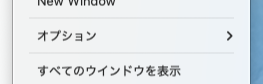
On iPhone and iPad, touch and hold the app icon to start a capture or find a row. On Mac, use the Dock menu to open a new window or workspace.
Share to Kosshi
Share a page, photo, or other content from an app such as Safari or Photos. Choose Kosshi from the share menu to open Add to Kosshi.
Siri and Shortcuts
On iPhone, say “Capture in Kosshi” to English Siri, then answer with the text to save. The text is added to your capture destination without opening the app. See Siri setup and steps.
Services menu (Mac)
Select text in another Mac app, then choose Services > Capture to Kosshi to add it to the top of your capture destination.
See Widgets & Menus for setup instructions, or Quick Capture for the Mac input panel.
Quick Find
Find Palette has been redesigned as Quick Find. Search for rows, recent edits, and bookmarks in the same window. Open it with Cmd+Shift+F.
Cmd+Shift+B continues to open Bookmarks. The new Cmd+Shift+R shortcut opens Quick Find with Recently Edited selected.
When the search field is empty, Quick Find shows recently edited rows. Start typing to search the whole document. Use the menu on the right to change the search scope, filters, and preview options.
Quick Find supports the same search conditions as regular search. Press Tab to complete a condition as you type. Matching saved searches also appear in the results.
If no row in the document matches, Quick Find also shows matching deleted rows.
See the Quick Find guide for search options and shortcuts.
Pull Down for Quick Find
On iPhone and iPad, pull down at the top of a document to open Quick Find (#73).
Recent edits in the sidebar
The sidebar can now show recently edited rows. Select one to return to where you were working.
Create a Row from [[
When the row you want to link to does not exist yet, you can create it from the [[ suggestions (#75).
Use the previous destination or choose where to create the row. You can undo the new row and its link together.
On Mac, suggestions appear below the cursor. On iPad, the list supports touch and trackpad scrolling.
Export and Preview
The export panel now uses a compact, icon-only control to switch between source text and the formatted preview.
Switching between source text and the formatted preview keeps the selected format and export scope.
Highlight Colors
Choose a highlight color from the text context menu without losing the selection (#72).
In the format bar’s color list, Default now has a pen icon to distinguish it from Yellow. The Heading and Document Comment actions are grouped under Row Style in the context menu.
Other Changes
- You can now change the Edit Note shortcut in Settings > Keyboard Shortcuts. The default is still Shift+Return (#74). On iPhone and iPad, this applies to hardware keyboards.
- On iPad, the keyboard toolbar is now hidden while you type with a hardware keyboard. To show it, turn on Show Toolbar with Hardware Keyboard in Settings > Controls. It is still shown while rows are selected or the controls panel is open.
Bug Fixes
- Fixed capture destinations not matching across Mac, iPhone, and iPad. Every entry point adds new content at the top of the destination.
- Closing Quick Capture without typing no longer leaves an empty row.
- Fixed an issue on iPhone and iPad where scrolling cleared the text selection.
- Fixed an issue on iPhone and iPad where the end handle of a selection appeared on the next line when the selection ended at a line wrap.
- Fixed issues where moving rows showed the wrong rows or a moved row returned to its old parent after a restart.
- Fixed a black area below the keyboard toolbar on iPad.
- Fixed incorrect note heights.
- Fixed incorrect text positions after emoji in quotes.
- On Mac, turning off Quick Capture while it is starting now cancels the pending input panel.