 Kosshi
Widgets & Menus
Write a note from a widget or send content from another app to Kosshi.
Widgets and controls
Open Kosshi or add a note from a Home Screen widget. You can also open Kosshi from a Lock Screen widget. Lock Screen widgets and Control Center offer note and task capture. Controls require iOS 18 or later.
Add Kosshi to the Lock Screen
Touch and hold the Lock Screen, open Customize, then choose Kosshi from Add Widgets.
On iOS 18 or later, you can also replace the buttons at the bottom. Remove a button, tap +, then choose Kosshi’s Quick Capture or New Task control.
App icon and Dock menus
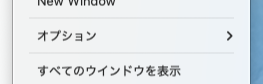
On iPhone and iPad, touch and hold the app icon to start a capture or find a row. On Mac, use the Dock menu to open a new window or workspace.
Share to Kosshi
Open a page, photo, or other content in an app such as Safari or Photos, then choose Kosshi from its share menu to add it.
Siri and Shortcuts
On iPhone, say “Capture in Kosshi” to Siri to add a note without opening Kosshi. You do not need to create a shortcut.
- In Kosshi, choose a destination in Settings > Quick Capture. If “Enable Siri” appears, tap it and allow access. If “Open Settings” appears, use it to allow Siri access in Settings.
- Activate Siri in English and say “Capture in Kosshi”.
- When Siri asks what to save, say “Buy milk” or the text you want to save.
After Siri confirms completion, the text is added as one item at the top of your capture destination. If Siri does not recognize the phrase, check the phrase shown in Kosshi’s Quick Capture settings.
Services menu (Mac)
Send selected text to the top of your capture destination with Services > Capture to Kosshi.
Capture destination
The destination is shared across Mac, iPhone, and iPad. On Mac, change it under Settings > Integrations > Quick Capture. New content always goes at the top of the destination.
See Quick Capture for the Mac input panel.