 Kosshi

1.24 Beta
Beta version
Version 1.24 adds Document View for reading and writing outlines as a document, Mirrors for showing the same row in more than one place, and AppleScript on Mac. Editing responsiveness and everyday interactions have also been improved.
Faster Editing
The text engine has been improved, making typing, line breaks, and joining rows more responsive. There is also less waiting time when editing long paragraphs, zooming in, or expanding and collapsing many rows at once.
Document View
You can now read and write outlines as a document (#63). Rows with children are shown as headings according to their hierarchy, with the body text as paragraphs.

On Mac and iPad, click or tap the document icon in the top-right to switch views. On narrower screens like iPhone, choose Document at the top of the … menu in the top-right.

Deep hierarchies can also be read without heavy indentation, making it easier to follow the text on iPhone. On Mac, pressing Cmd+P while in Document View lets you print or save as a PDF while keeping the Document View layout, heading sizes, and paragraph spacing intact.
This feature improves on Heading (Beta) and serves the same purpose, so Heading (Beta) has been removed.
See how to use Document View →
Mirrors
Mirrors let you show the same row in another place (#58). For example, you can put a task from a project under "Today" too. Editing either one updates both.

You can create a mirror by typing (( in a row and choosing the target row. This works on Mac, iPhone, and iPad. In Document View, mirror rows show an outline diamond (◇) mark at the end of body and heading text.
If you delete the original row, the mirror remains read-only. If you restore the original row from Recently Deleted, you can edit it again.
In Kosshi 1.23 and earlier, mirrors appear as row links named "mirror." Use the same version on all syncing devices.
AppleScript (Mac)
You can now control most of Kosshi's features using AppleScript on Mac (#80). You can use it for automation in Script Editor, or in combination with other tools and AI agents.
Supported operations include:
- Create, search, edit, move, and delete rows, and restore from Recently Deleted
- Work with completion states, bookmarks, tags, notes, mirrors, and saved searches
- Run actions such as sorting and converting rows
- Export in Markdown, OPML, Rich Text, and TextBundle, and create backups
- Switch between window, pane, and workspace views
From the terminal, you can also control Kosshi with the bundled kosshi command.
Note: AppleScript commands and specifications (API) are not finalized yet, so they may change in future versions.
Note: If you are using the Kosshi Beta app, replace tell application "Kosshi" with tell application "Kosshi Beta" in your scripts.
iPhone Actions and Search
On iPhone, Search, Document, and Lock are grouped at the top of the … menu in the top-right. Actions like copy and export can also be opened from the same panel.

Other New Features and Improvements
Tags and Moving Rows on Completion
When you mark a row as complete, you can now automatically add an @tag and move it to the end of the list. In Settings > Editing > Completion, you can choose Off, Checkbox rows only, or All completed rows for each (Off by default).

Turn Into
You can now switch between bulleted lists, numbered lists, and prose from Turn Into in the row menu. When you select multiple rows and convert them into a code block, quote, or math block, they are combined into a single block.

Collapse and Expand the Visible Area
You can now collapse and expand the visible area while zooming or searching. On Mac, use Cmd+Option+Shift+↑ to collapse and Cmd+Option+Shift+↓ to expand, or run it from Find Action.
Outline Widget
In Settings, you can now choose which row appears in the Outline widget on iPhone and iPad (#81). If you don't choose a row, it shows the last used location.

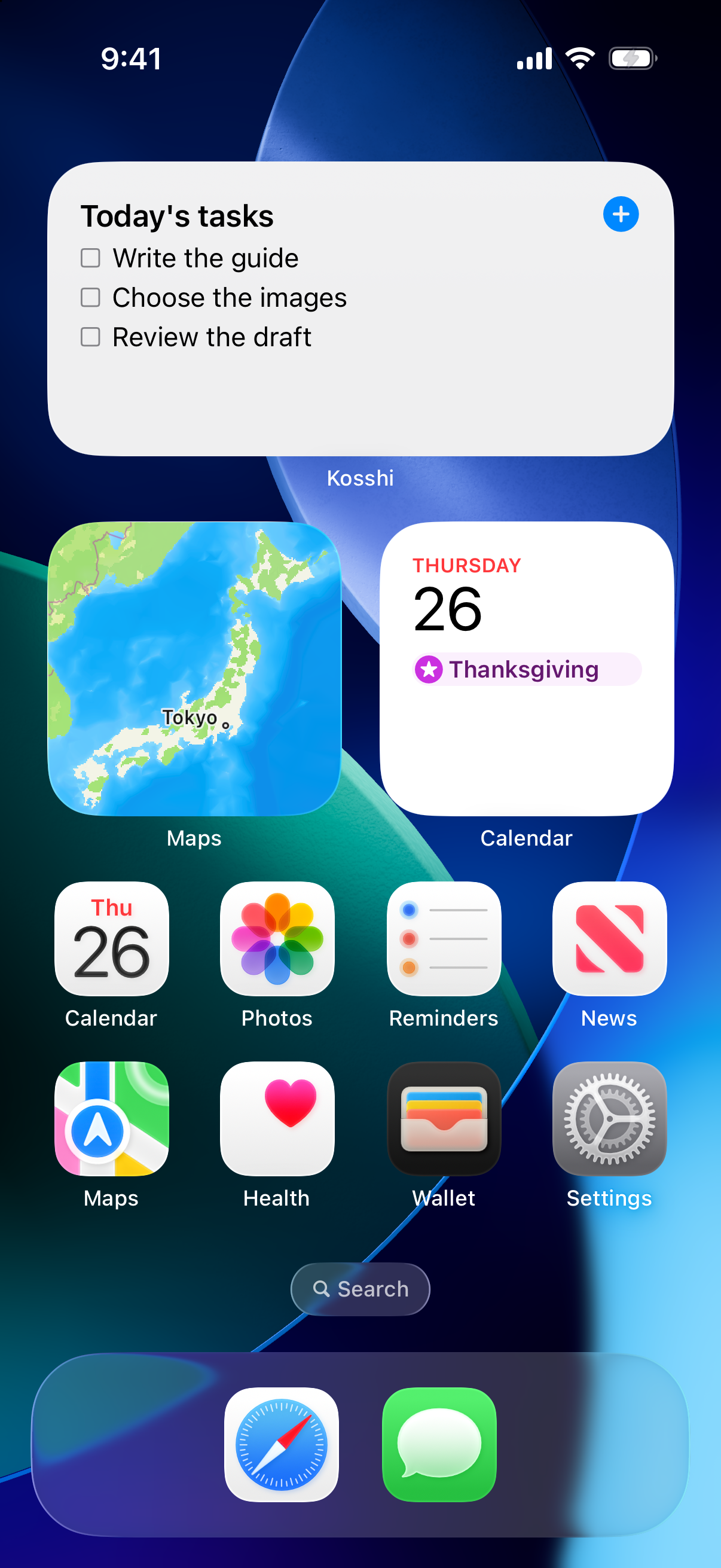
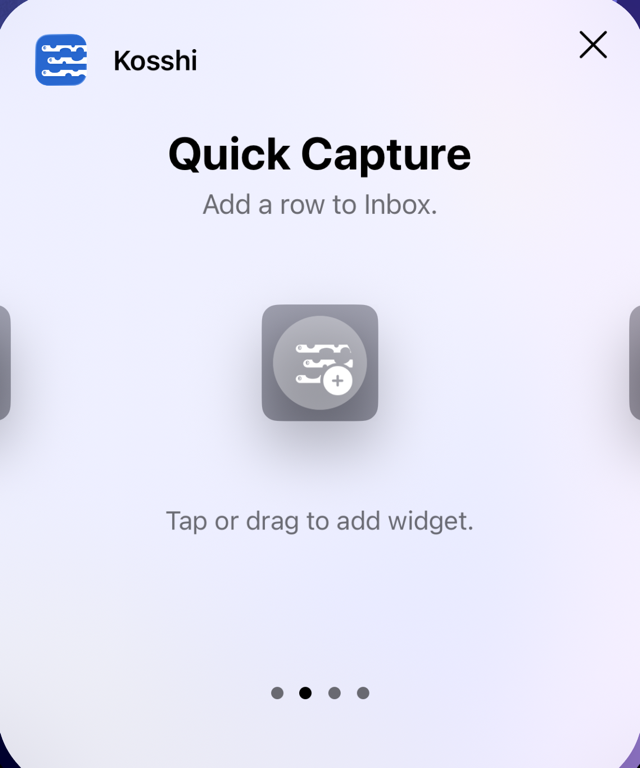
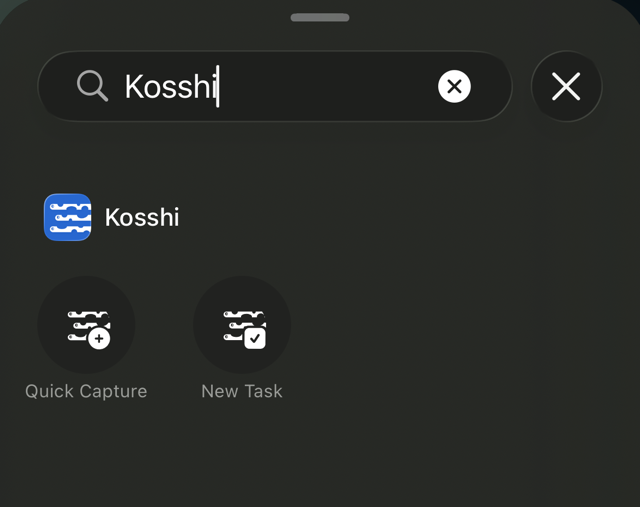
iPhone and iPad widgets and controls have also been reorganized, unifying the icons with a Kosshi-specific design.
Search by Checkboxes, Row Links, and Mirrors
You can now use has:checkbox, is:todo, and is:done in searches (#91). They match rows with checkboxes, unchecked checkboxes, and checked checkboxes.
has:row-link and is:mirror have also been added to find rows with row links and mirror rows.
Image Size and GIFs
In Settings > Appearance > Layout, you can now choose from three default image sizes (Small, Medium, and Large). Small images are not stretched, and images with a custom width keep that width.


The same image displayed in Small, Medium, and Large sizes.
Attached GIFs now animate inside the outline. When the system Reduce Motion setting is on, they appear as still images.
See how to use Images & Files →
Child Rows in Row Link Previews
Row link previews now show the child rows and partial outline of the target row, in addition to its parent path and row name.

Search and UI Design Improvements
The design and placement of the search bar have been revised on Mac, iPad, and iPhone. On the wider screens of Mac and iPad, it fits neatly in the top-right corner of the header, and backlinks: is also displayed as the row name.

The button switches to the wide view just below the header.

The overall look of the app has also been fine-tuned, including the sidebar, selection highlights, and the alignment of bullets and checkboxes.
Drag to Swap and Rearrange Split Panes
You can now drag and drop to swap or resplit panes on Mac and iPad.

Mac Editing Keys
You can now use Ctrl+Y to restore text deleted with Ctrl+K. Option+↑ / ↓ moves to the start and end of a paragraph, and Ctrl+V scrolls down one screen.
Other Improvements
- Fixed a half-pixel offset that caused text to blur when limiting content width on non-HiDPI (1x) displays.
- When collapsing a row with many children while scrolled down, the view temporarily preserves its height so the parent row does not drift down the screen.
- On the iPhone and iPad keyboard toolbar, the horizontal scroll position is now preserved after opening or closing the keyboard or action panel.
- On iPhone and iPad, you can now touch and hold or double-tap to select and copy text from body rows or notes, even when editing is locked or the trial has expired.
- iCloud sync now fetches row text and attachment metadata first, then downloads attachment files one by one afterward.
- The backlink count now appears as a superscript at the end of rows.
- Breadcrumbs now show formula results as well.
- External apps, such as dictation tools, can now read the selected text and Japanese text being converted (#85).
- Revised the translated wording for menus and settings in the seven languages other than English and Japanese.
Bug Fixes
Dates and Tags in Links
Dates, # tags, and @ tags in the display name of Markdown links ([display name](URL)) are no longer treated as dates or tags. Put any dates or tags used in search, the sidebar, or reminder/calendar integrations outside the link. If you were relying only on date tags inside a link for integrations, check your calendar events and reminders after updating.
Main Fixes
- Fixed an issue where creating a child row in a numbered list continued the parent's numbering (#95).
- Fixed an issue where child rows appeared twice or overlapped with other rows when expanding or collapsing rows repeatedly (#90).
- Fixed an issue where animations or display positions broke when expanding or collapsing a row whose original and mirror appeared on the same screen.
- Fixed an issue where selecting and deleting from the end of a row to the start of the next row caused the note on the next row to disappear.
- Fixed an issue where editing a note with spell check on could cause body display or note content to break.
- Fixed an issue where smart quotes or smart dashes were incorrectly converted within code blocks, inline code, and math formulas.
- On iPadOS 26 and later, the header no longer overlaps with the window controls.
- Fixed a rare crash when opening the sidebar or breadcrumbs on iPhone and iPad, and an issue where animations stuttered during consecutive zoom-outs.
- Fixed an issue where typed text was lost when locking a document.
- Fixed an issue where some corrupted backups were restored with missing data.